
What the integration does
Phound for HubSpot puts a Phound softphone inside HubSpot and writes your conversations back to the CRM as activities. Your team keeps working in HubSpot. Phound handles the calls, texts and meetings, and the record keeping.
- Softphone inside HubSpotPlace and receive calls from any contact record using HubSpot's call button, with your Phound number as the caller ID.
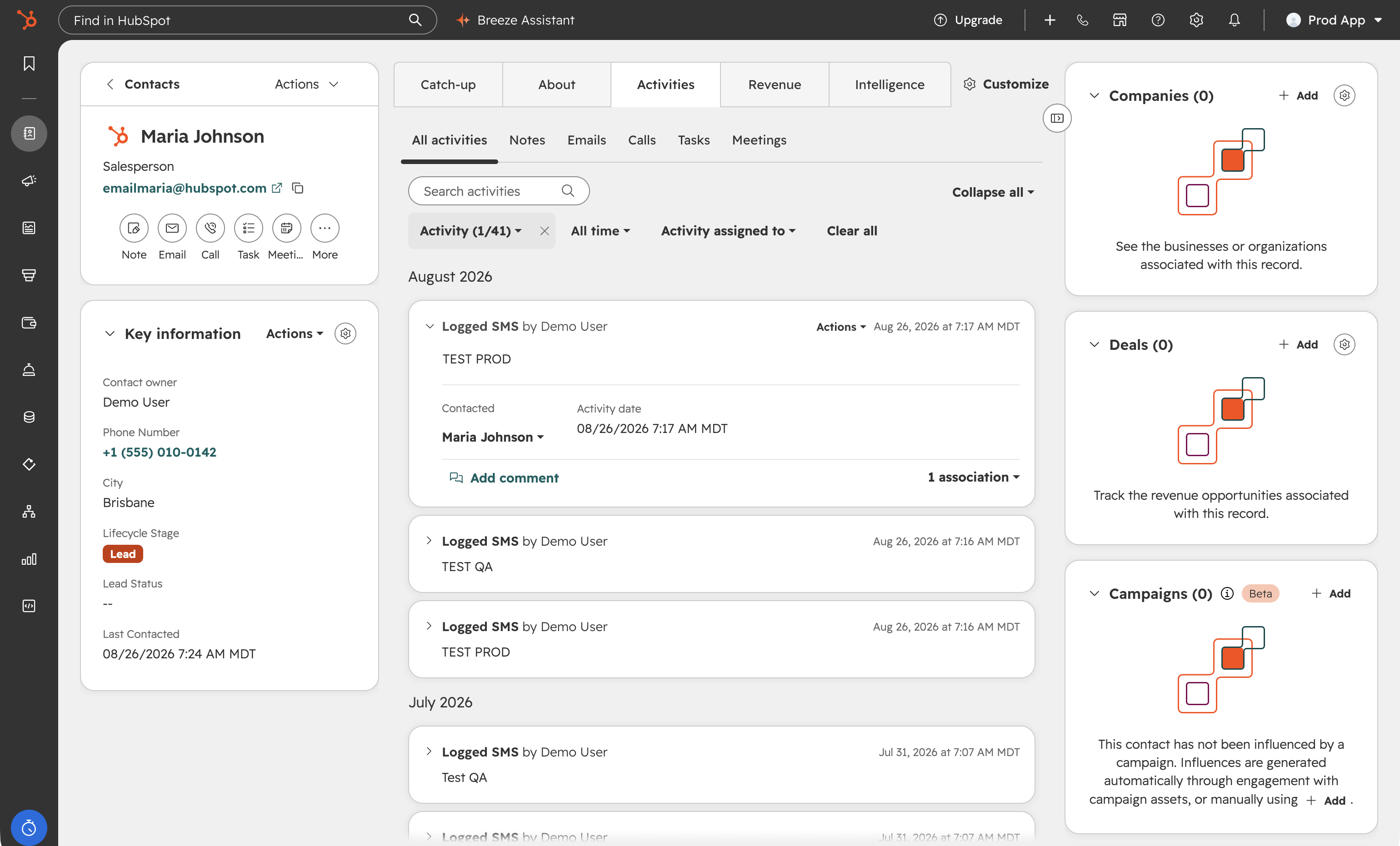
- Calls logged automaticallyEvery inbound and outbound call becomes a call activity on the contact's timeline, with direction, duration and outcome.
- Texts logged automaticallySMS conversations with a contact are logged as activities on that contact, in both directions.
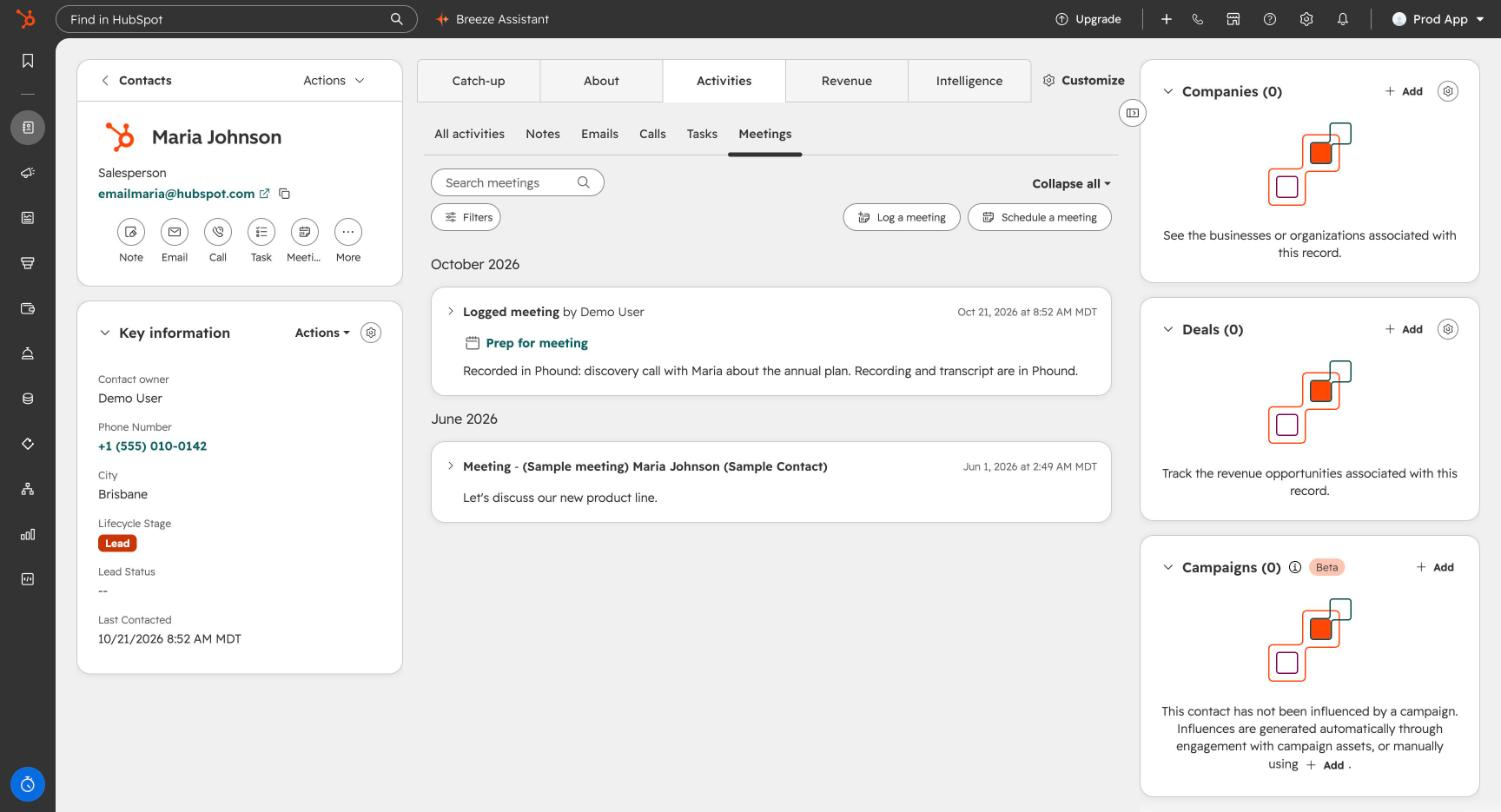
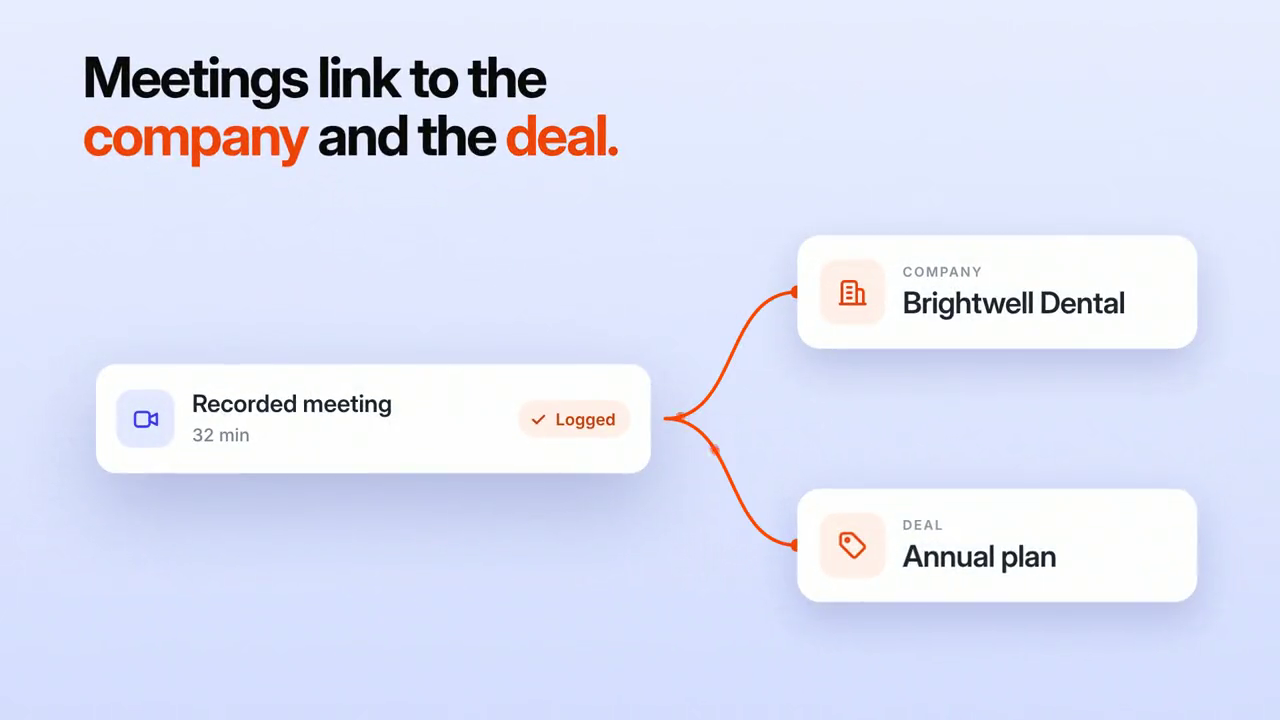
- Recorded meetings loggedMeetings you record in Phound are logged as meeting activities on the contact, and can also be associated with a company and a deal.
Who it is for
Sales and customer teams that live in HubSpot and want their phone and text history in the same place as their email history. Typical uses: calling leads from a HubSpot list without switching apps, keeping a complete contact timeline for handoffs, and attaching a recorded discovery call to the deal it belongs to.
Before you start
You will need:
- A Phound account with a phone number. Calls and texts go out from your Phound number. If you do not have one yet, create a free account and claim a number in the app.
- A HubSpot user with permission to install apps. In HubSpot this is a Super Admin, or a user with the App Marketplace Access permission. See HubSpot's guide to connecting apps.
- A browser that allows pop-ups from web.phound.app. Connecting opens HubSpot in a new window, and a pop-up blocker stops it before it starts.
One connection per HubSpot account. Each Phound user connects their own HubSpot user. Activities are logged under the HubSpot user who made or received the call, so your team's reporting stays accurate.
Install the app and connect your HubSpot account
Installing happens from Phound. You can also start from the HubSpot App Marketplace listing by choosing Install app, which brings you to the same sign-in and permission screens below.
-
Open Integrations in Phound
Sign in to the Phound web app. Choose your profile icon in the left sidebar to open Account, then Integrations, then Connect integration. Search for HubSpot in the list and choose Connect on the HubSpot row.
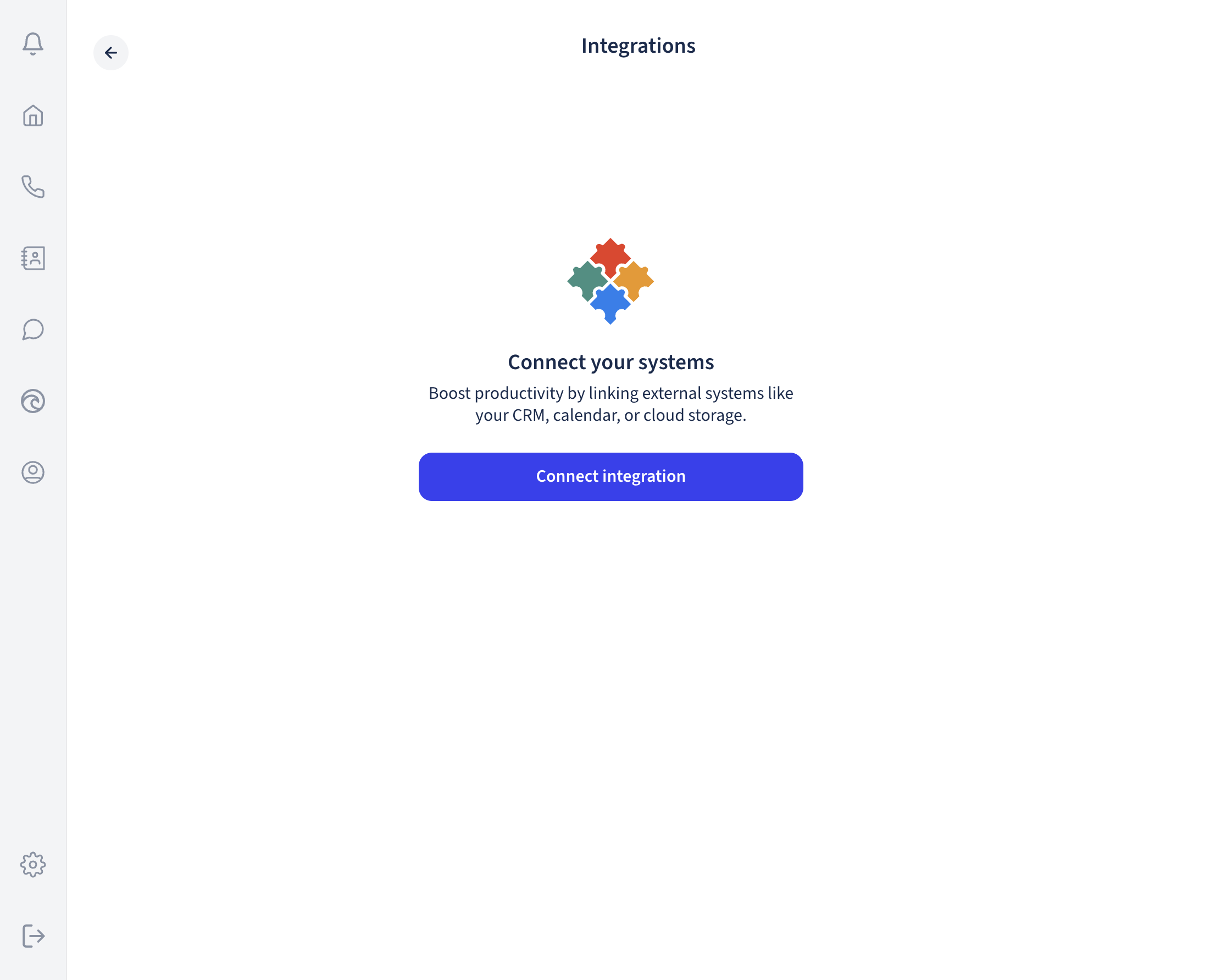
Account, Integrations in the Phound web app. 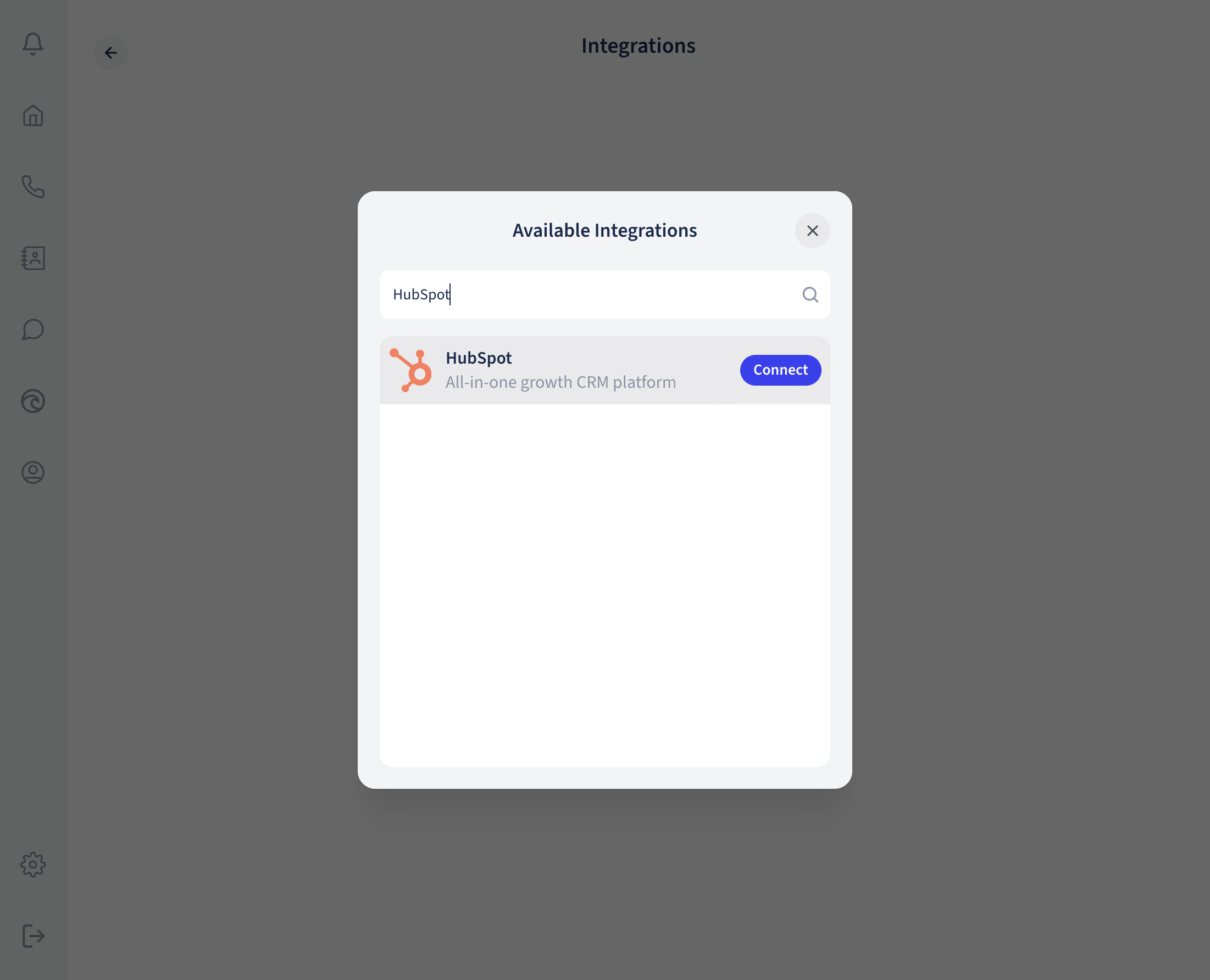
Search for HubSpot in Available Integrations and choose Connect. -
Sign in to HubSpot
A HubSpot window opens, headed Connecting your Phound account to HubSpot. Choose Sign in to your HubSpot account and sign in with the HubSpot user that should own this connection. If you are already signed in to HubSpot in this browser, HubSpot goes straight to the next step.
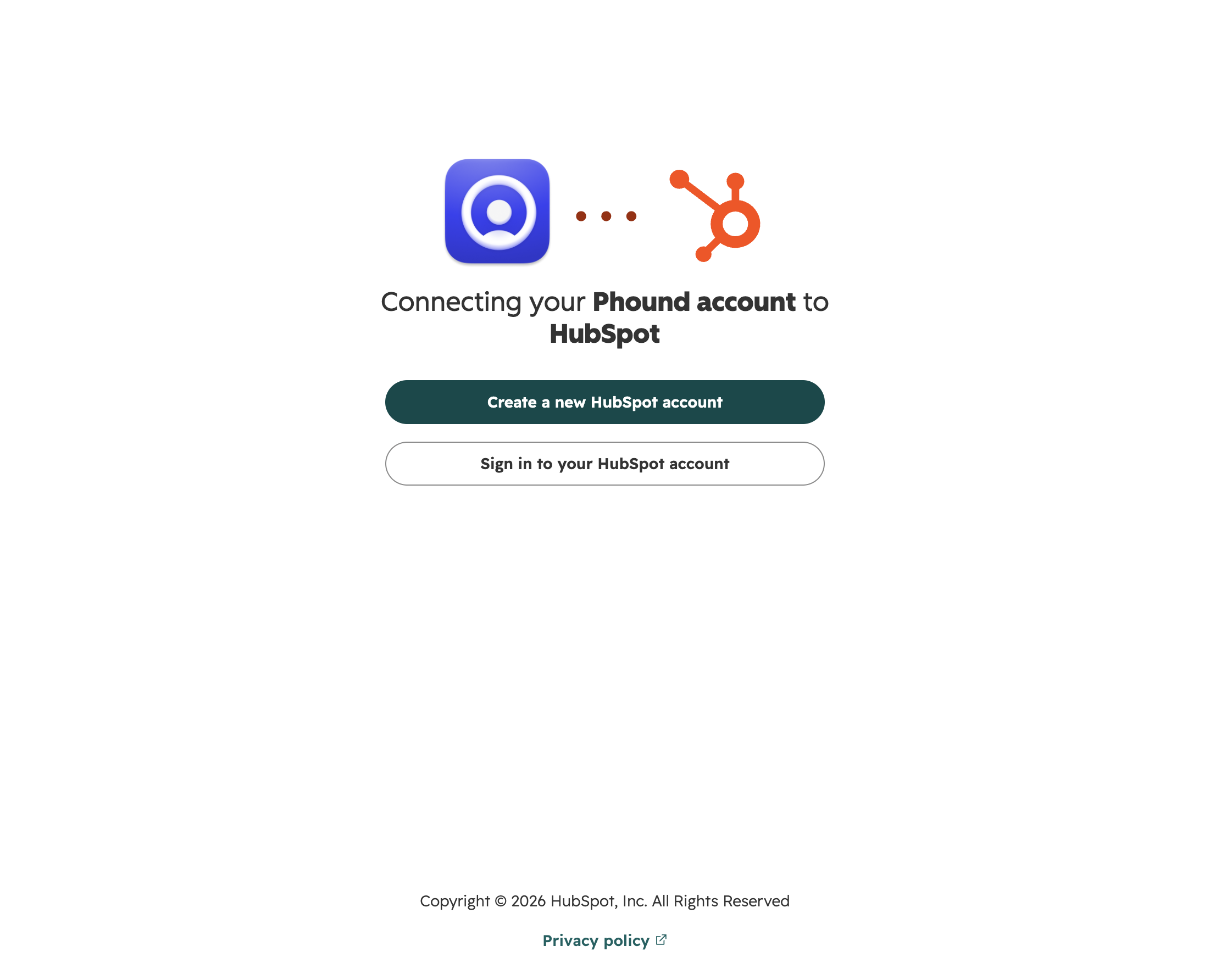
The first HubSpot screen. Choose Sign in to your HubSpot account. -
Choose the HubSpot account
HubSpot lists the accounts your user belongs to, even when there is only one. Select the account you want to connect and choose Choose Account.
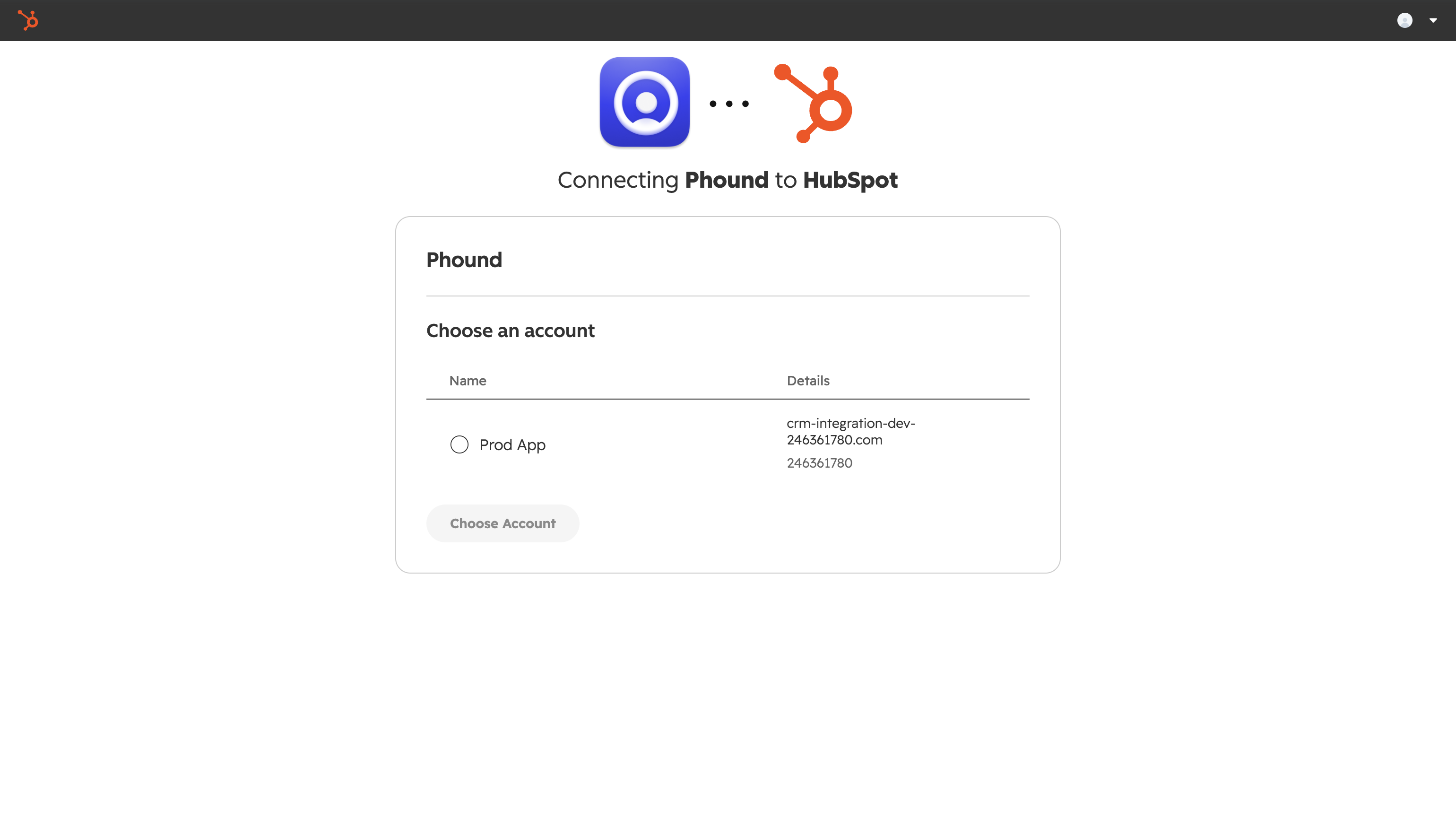
Pick the HubSpot account to connect. -
Review and approve permissions
HubSpot shows the permissions Phound is asking for. Phound requests only what the features above need: viewing and editing contacts, so calls and texts can be logged on them; viewing and editing companies and deals, so a recorded meeting can be associated with them; and viewing the account's users, so activities are attributed to the right HubSpot user. Review the list and choose Connect app.
Reconnecting? If this HubSpot account already has the Phound app installed, HubSpot does not ask for permissions again and goes straight to the confirmation.
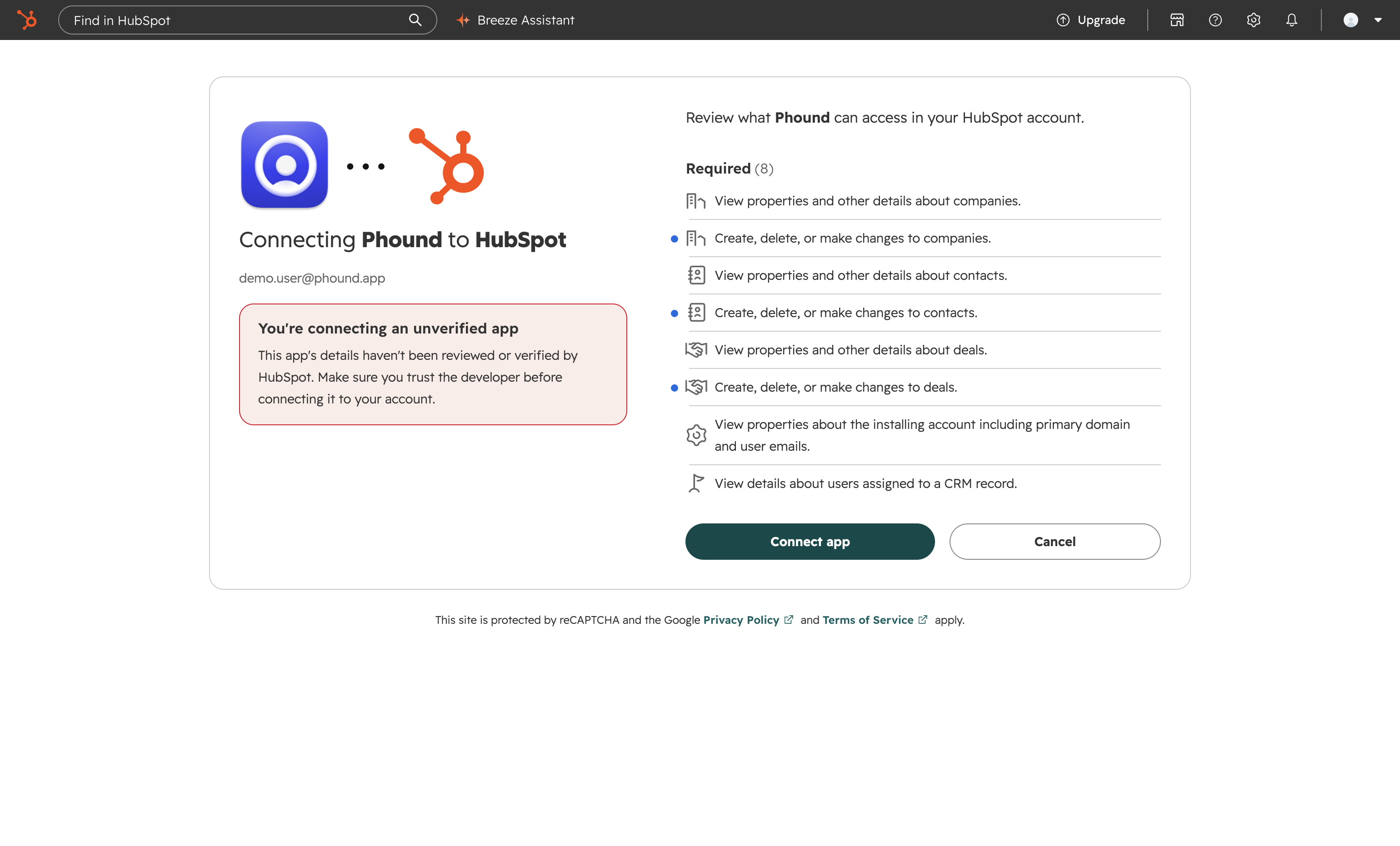
The permission screen. Every scope Phound requests is listed here. -
Confirm the connection in Phound
The HubSpot window shows Account Linked and can be closed. Back in Phound, the Integrations page now lists HubSpot. Open it to see the HubSpot user and hub domain the connection uses, and a Disconnect button. On the HubSpot side the app is installed and appears under Settings, Integrations, Connected apps.

The confirmation shown in the HubSpot window. 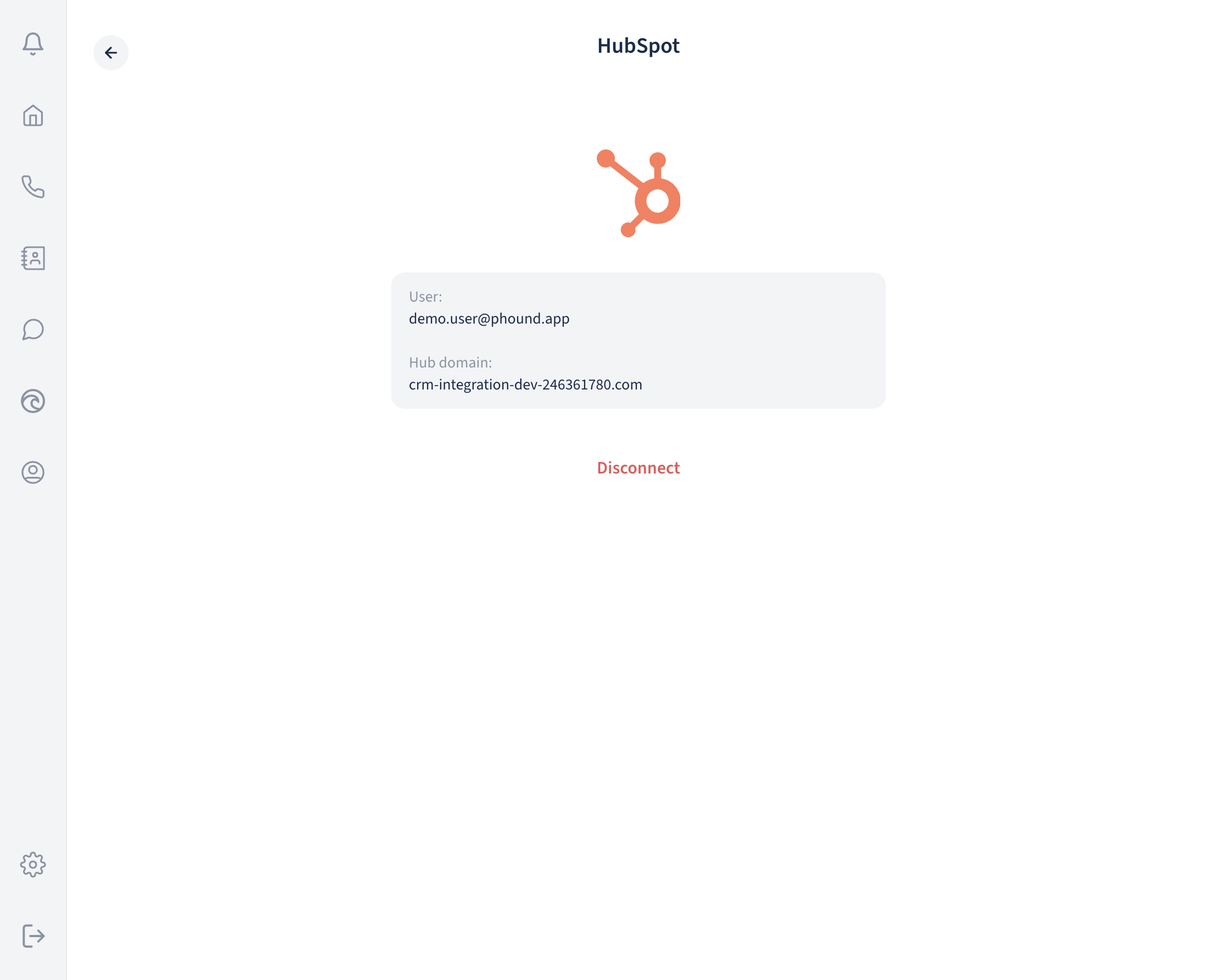
Connected. Next, tell HubSpot to use Phound for calls.
Configure the integration
One setting in HubSpot makes the softphone appear. Everything else works with the defaults.
-
Choose Phound as your calling provider in HubSpot
In HubSpot, open any contact record and choose Call. At the bottom of the calling popover choose Change provider, and in Choose a calling provider pick Phound. The same chooser opens from the phone icon in HubSpot's top bar. This is a per-user choice, so each teammate who calls from HubSpot makes it once.
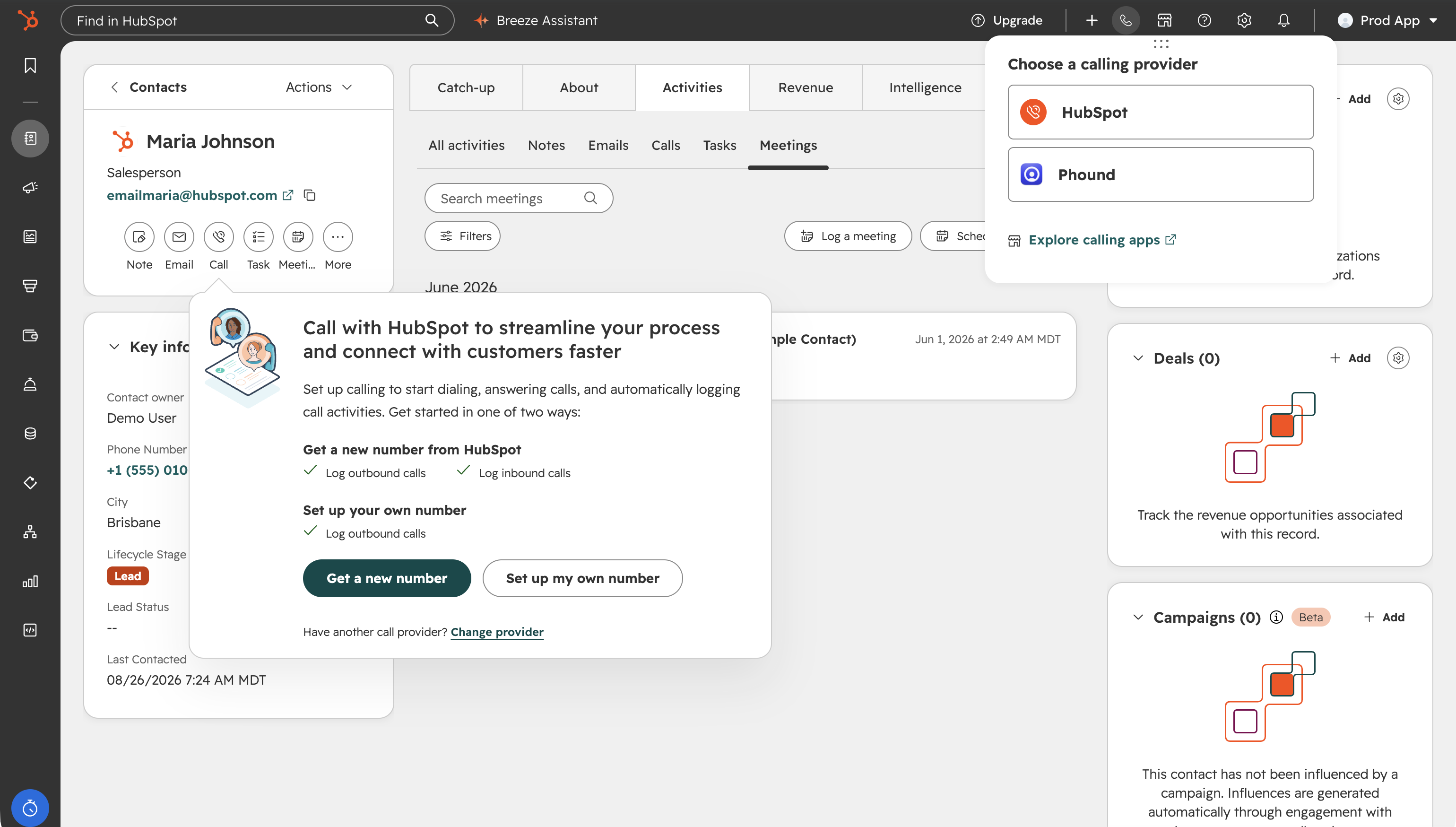
Choose a calling provider: HubSpot or Phound. -
Check that the softphone loads
With Phound selected, the call panel first says the calling window is closed. Choose Open calling window. The first time, the panel asks you to sign in to Phound; choose Sign in to Phound and sign in once for this browser. The Phound dialer then appears in the panel, showing your name and Phound number as the line you are calling from. When the browser asks for microphone access, allow it, or calls cannot connect.
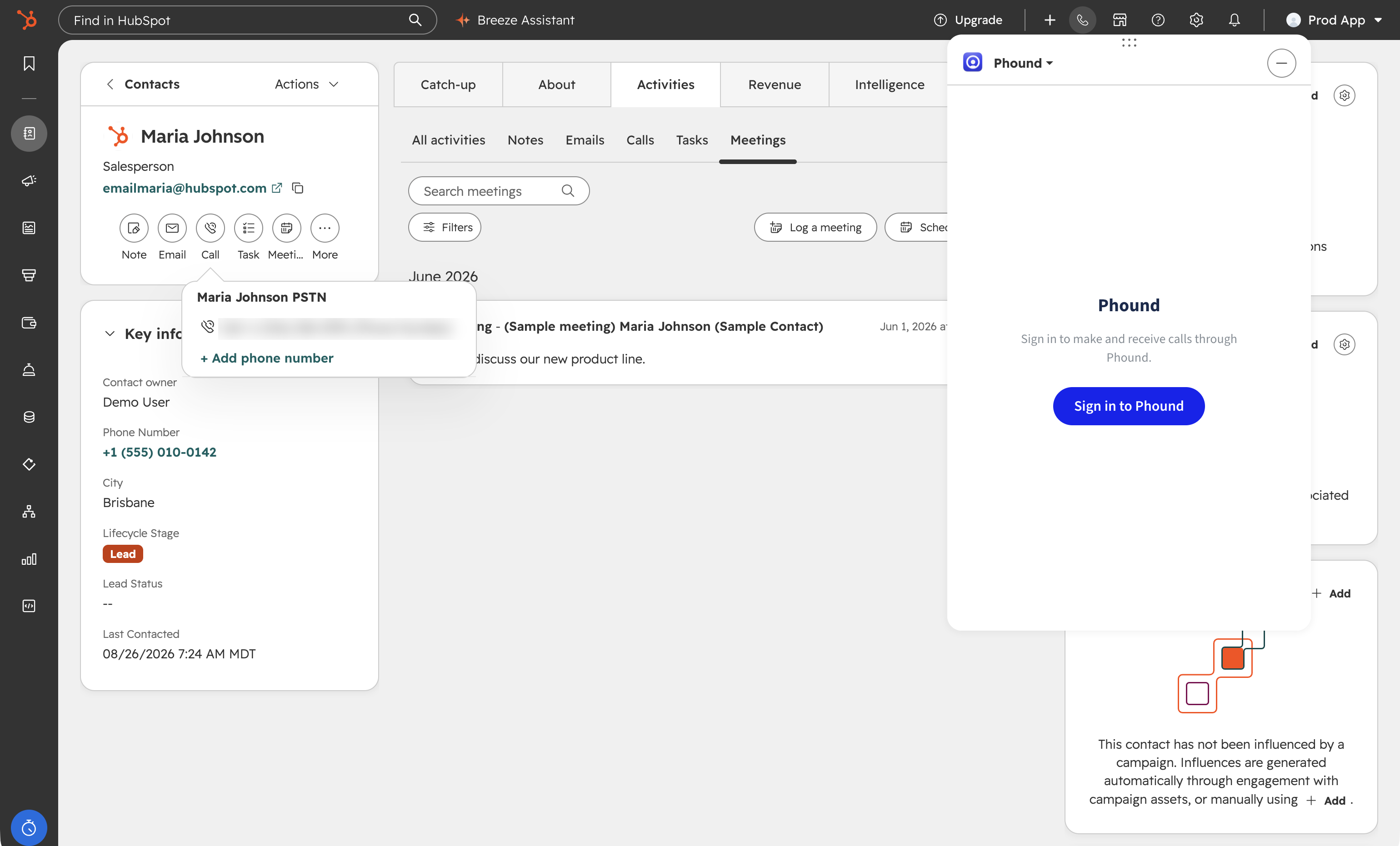
The one-time Phound sign-in inside the call panel. 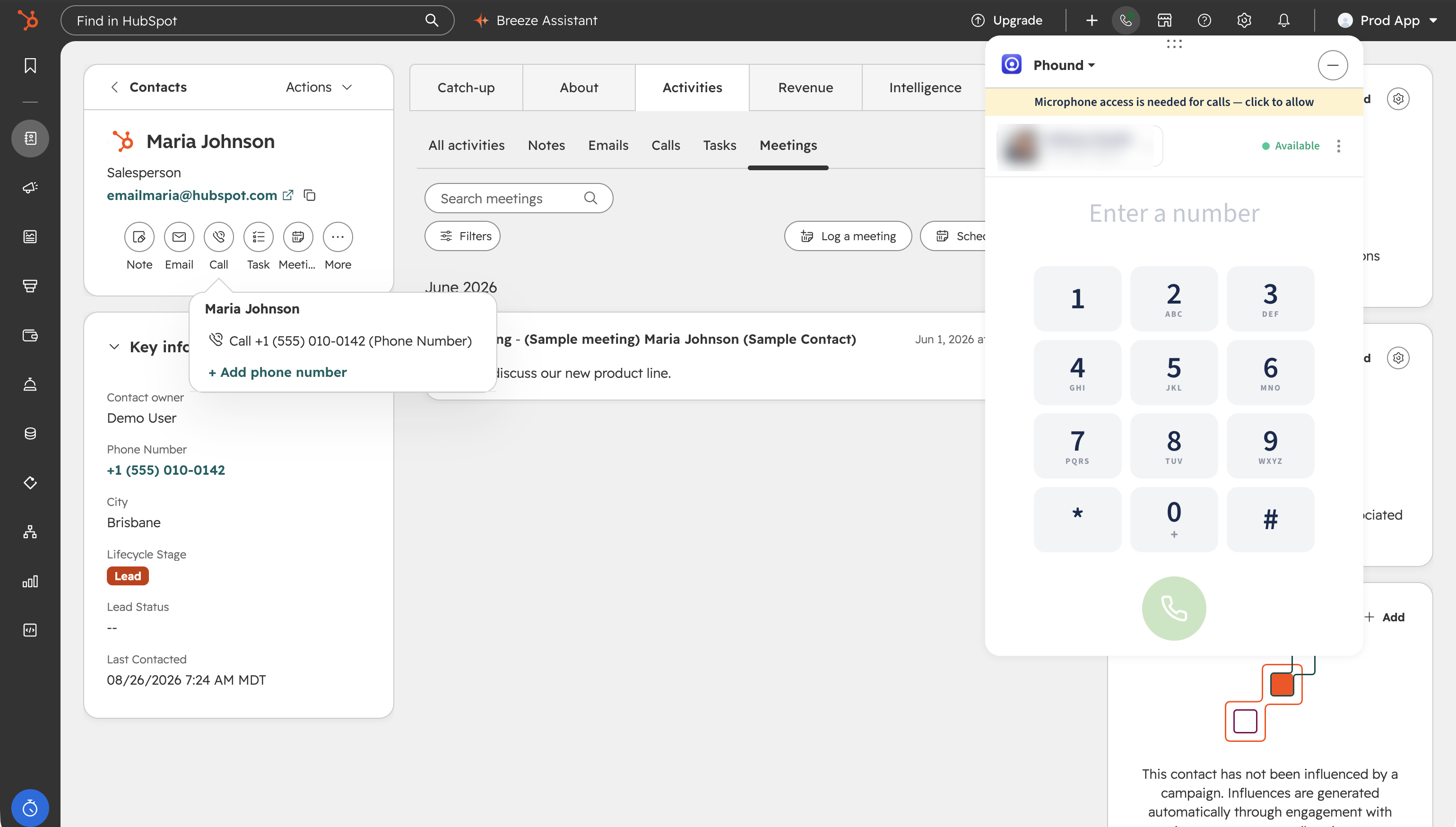
The Phound softphone inside HubSpot's call panel.
Nothing to configure in Phound
There are no settings on the Phound side. Once connected, calls, texts and recorded meetings are logged automatically for the Phound user who made the connection.
Use the integration
Most of what the integration does happens on its own once you are connected. The table shows what is automatic and where you act.
| Activity | Automatic | You do |
|---|---|---|
| Outbound call | Logged on the contact when the call ends, with duration and recording link if recorded. | Choose Call on the contact and pick an outcome. |
| Inbound call | Caller matched to a contact by phone number and logged when the call ends. | Answer in the HubSpot call panel or in the Phound app. |
| Text message (SMS) | Each message logged on the contact, sent and received. | Send texts from Phound. Nothing else. |
| Recorded meeting | Logged as a meeting activity on the matched contact once the recording is processed. | Record the meeting in Phound. Optionally associate it with a company and a deal. |
Make a call
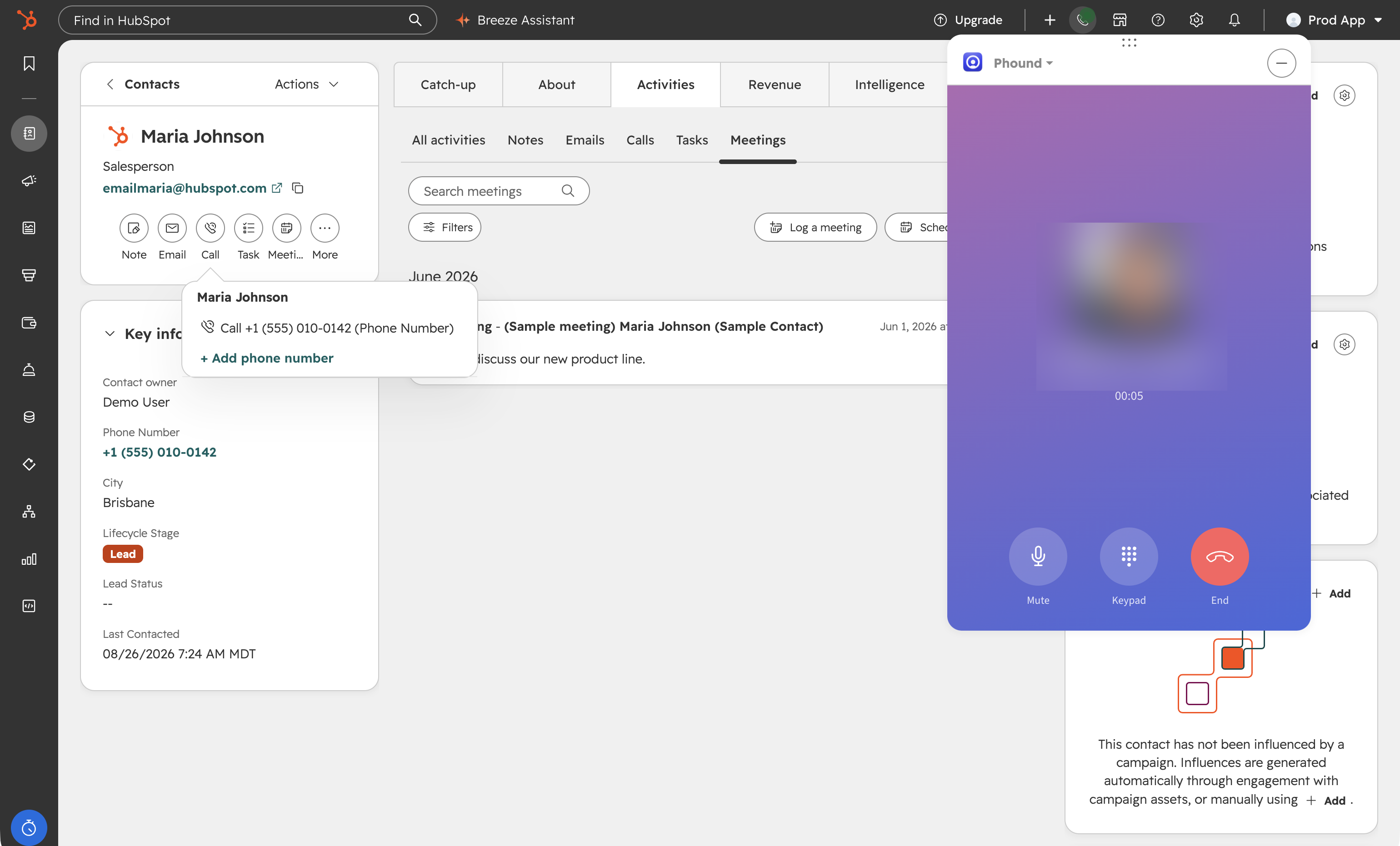
Open a contact in HubSpot and choose Call, or choose the phone icon next to a number on the record. The Phound softphone dials from your Phound number. Talk as usual. When you hang up, HubSpot asks for a call outcome and notes, as it does for any call, and Phound fills in the rest.
Receive a call
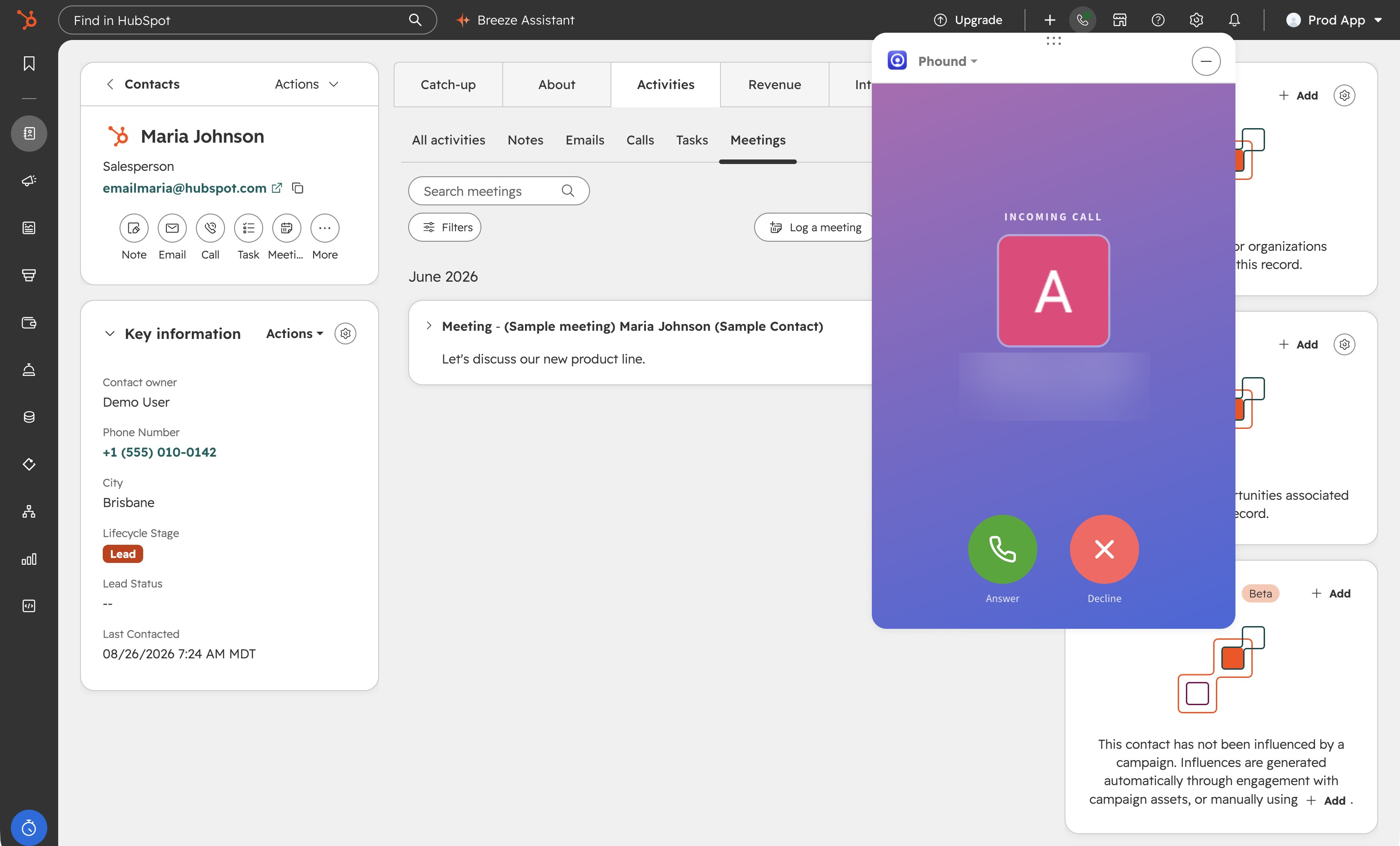
When a contact calls your Phound number, the call rings in the HubSpot call panel if you have HubSpot open, and in the Phound app on your desktop and phone. Answer wherever you are. The caller is matched to the HubSpot contact by phone number, and the call is logged on that contact when it ends. A call from a number that matches no contact is logged against a new contact created from the number, so nothing is lost.
See logged calls
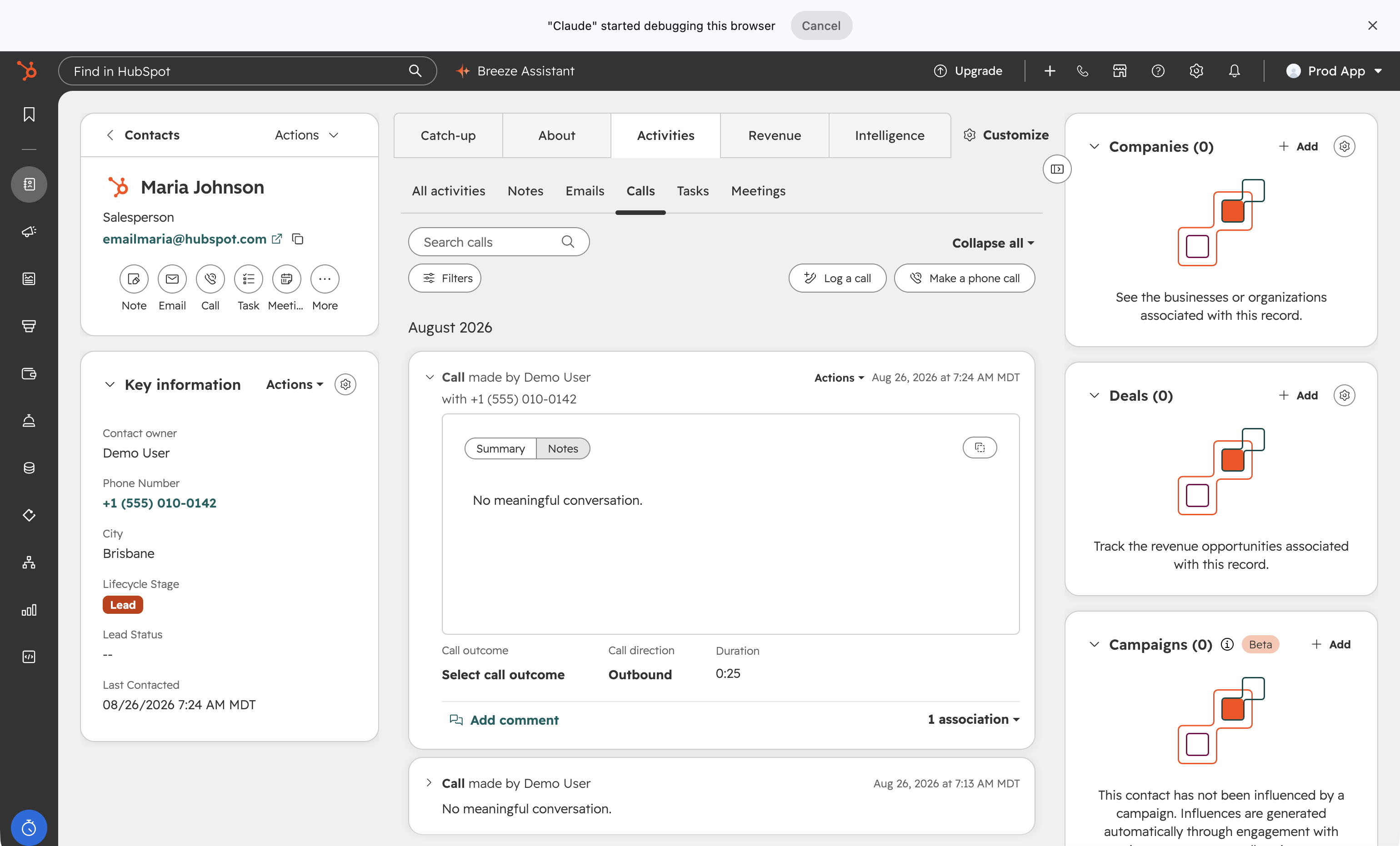
Each call appears on the contact's timeline as a call activity with the direction, duration, outcome, and a link to the recording and transcript in Phound when the call was recorded. Call activities count in HubSpot's call reports like any other call.
Text messages
Send and receive texts in Phound as you normally do. Every message exchanged with a phone number that belongs to a HubSpot contact is logged on that contact, with the message text and direction. Group messages and messages with numbers that match no contact are not logged.
Recorded meetings
Record a Phound meeting as usual. When the recording is processed, Phound logs a meeting activity on the HubSpot contact whose phone number or email matches a participant, with the meeting title, duration and a link to the recording and transcript.
Associate a meeting with a company and a deal. This part is manual, because only you know which deal a conversation was about. Open the recording in Phound, choose HubSpot, and pick the company and the deal. The meeting activity then shows on those records too.
Disconnect your HubSpot account from Phound
Disconnecting stops Phound from reading or writing anything in HubSpot. Do this from Phound.
-
Open HubSpot in Phound's Integrations
In the Phound web app, open Account, then Integrations, then HubSpot, and choose Disconnect.
Account, Integrations, HubSpot, Disconnect. -
Done
There is no confirmation step. The connection is removed as soon as you choose Disconnect, Phound deletes its access token for your HubSpot account, and the Integrations page returns to Connect integration.
What happens to your data
- Everything already logged in HubSpot stays. Call, SMS and meeting activities remain on your contacts, companies and deals. Phound does not delete anything from HubSpot.
- New calls, texts and meetings are no longer logged. They continue to be stored in Phound as usual.
- The softphone stops working in HubSpot. HubSpot still has Phound selected as your calling provider until you change it, so pick another provider in Choose a calling provider if you want to keep calling from HubSpot.
- Phound removes the HubSpot data it held for the connection, which is the access token, your HubSpot account ID and the contact ID mappings used for logging. Your recordings and transcripts stay in Phound under Phound's Privacy Policy.
You can reconnect at any time by following the install steps again.
Uninstall the app from HubSpot
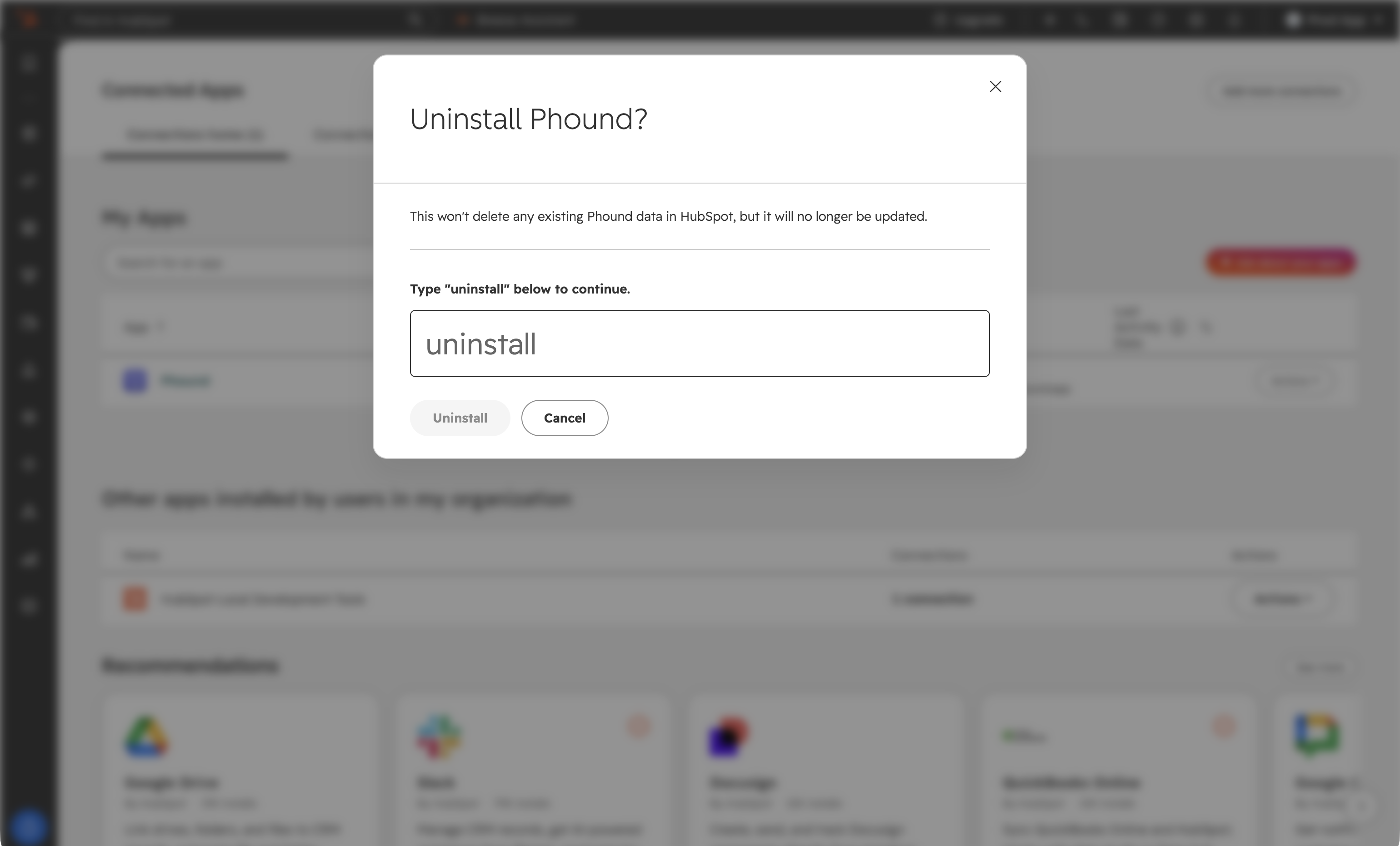
Uninstalling from the HubSpot side removes the app and revokes its access in one step. In HubSpot, open Settings, then Integrations, then Connected apps. Find Phound, open its Actions menu and choose Uninstall. HubSpot explains that the data Phound already logged stays in HubSpot but will no longer be updated, and asks you to type uninstall to confirm.
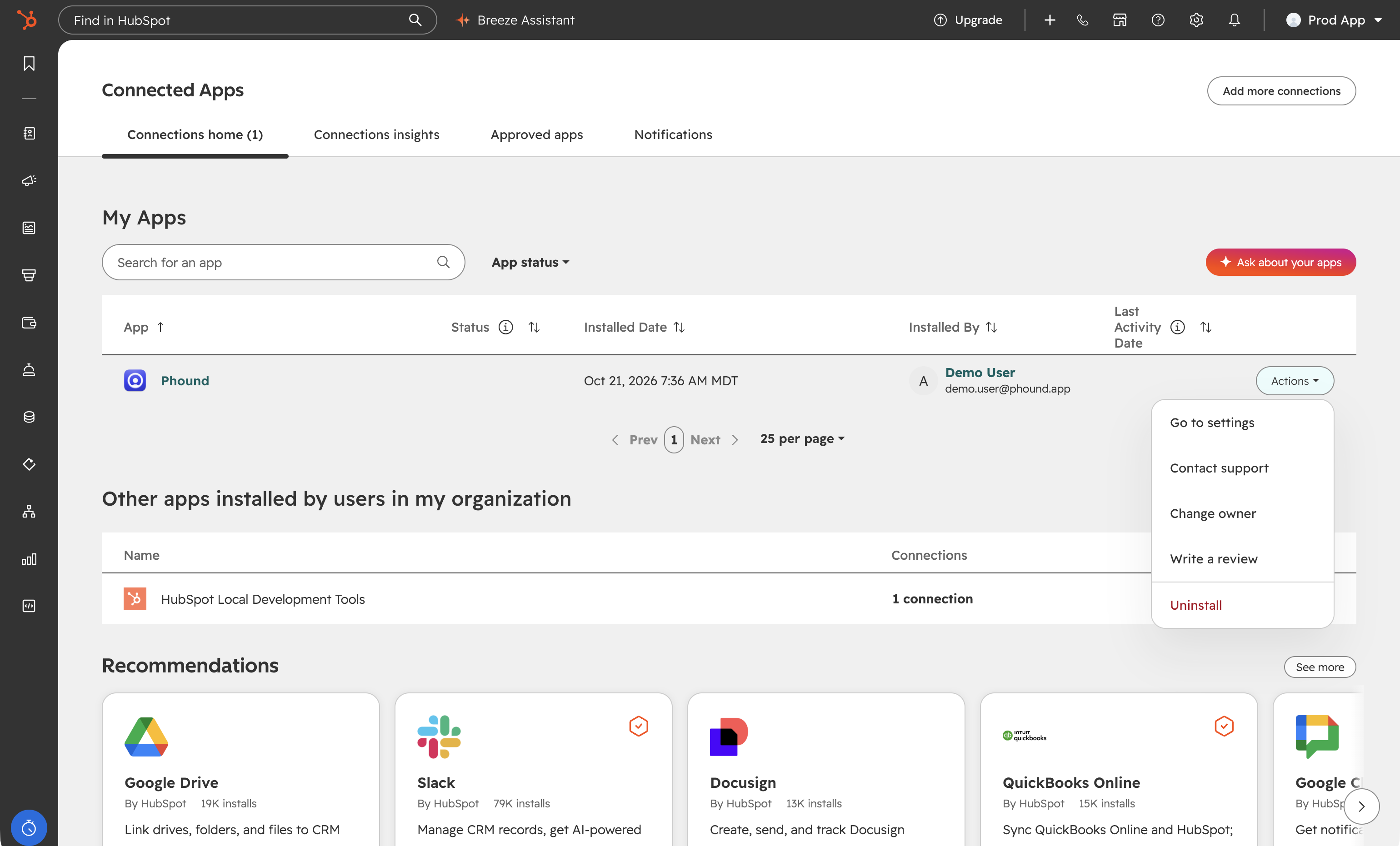
HubSpot's own article has the full steps and screenshots: Uninstall an app.
What happens to your data
- HubSpot notifies Phound that the app was uninstalled, and Phound marks the connection as disconnected and deletes its access token. The HubSpot card in Phound returns to Connect.
- Activities Phound already logged stay on your HubSpot records. Uninstalling does not delete HubSpot data.
- If Phound is still your calling provider in HubSpot, pick another provider in Choose a calling provider.
Uninstalling for a whole team. Uninstalling the app in HubSpot disconnects every Phound user who connected to that HubSpot account, not only you. If you only want to stop logging for yourself, disconnect from Phound instead.
Troubleshooting
Connect in Phound shows "Failed to connect integration"
Phound opens HubSpot in a new window, and a pop-up blocker stops it. Allow pop-ups for web.phound.app in your browser and choose Connect again.
The Call button in HubSpot does not show Phound
Choose Call on a contact, then Change provider at the bottom of the popover, and pick Phound in Choose a calling provider. The choice is per user, so a teammate choosing Phound does not change yours. Phound only appears in the list while the app is installed in that HubSpot account.
Calls are not being logged
Open Account, Integrations in Phound and confirm HubSpot is still listed. A connection drops if the HubSpot user who made it is deactivated or if the app was uninstalled in HubSpot. Reconnect by choosing Connect integration and following the install steps again.
A call or text landed on the wrong contact, or on no contact
Phound matches by phone number, including the country code. Make sure the contact's phone number in HubSpot is complete, with no extension in the number field. If two contacts share a number, Phound logs against the one updated most recently.
I connected the wrong HubSpot account
Disconnect in Phound, then connect again and pick the right account in the account chooser. If HubSpot does not show the chooser, sign out of HubSpot in that browser first.
Privacy and data handling
Phound stores the HubSpot access token, your HubSpot account ID and the mapping between Phound conversations and HubSpot record IDs, and nothing else from your HubSpot account. Data written to HubSpot is limited to the activities described above. Details are in the Phound Privacy Policy and Terms of Service. For data access or deletion requests, including under GDPR, write to support@phound.app.